 Milan · Como · Since 2010

MONITORING & ALERTING
ExperimentalZabbix
SMS notifications.
Turn infrastructure triggers into actionable SMS notifications. Start with a reviewable prototype and an external bridge to the FoxBox HTTP API.
HOW IT CONNECTS
01 / USE CASE
A useful notification,
from an existing event.
A monitored host becomes unavailable. A trigger action sends the event to your bridge, which translates it for FoxBox.
The integration adds a separate SMS notification path. It does not establish service availability or replace your existing incident response and escalation process.
02 / REQUIREMENTS
Before you begin.
- Zabbix webhook media type; installed version to validate
- A separate host for the integration bridge. Nothing is installed on the FoxBox firmware.
- Python 3 for the bridge and an isolated environment for the first test.
- A FoxBox HTTP interface compatible with the documented
app=ws,op=pvrequest. Device and firmware version must be confirmed. - For any later live test: an approved recipient, correct credentials and a validated SMS route. SIM routes require coverage; external services require internet access and provider configuration.
No physical FoxBox firmware version or target Zabbix instance has been verified end to end for this prototype.
Which FoxBox fits this integration?
Choose the format, modem count and network you need. Keep Zabbix as the project context.
Find the right FoxBox for this integration →03 / INSTALLATION
Start in isolation.
Prepare the bridge.
Download the source bundle. Follow its root README to configure the external bridge in dry-run mode, using placeholders and a local test destination.
Step 2
Create a Webhook media type and paste the supplied JavaScript into its Script field.
Step 3
Configure the bridge address and its authentication value in protected media parameters.
Step 4
Use a dedicated test action. Route synthetic events to the dry-run bridge first.
04 / REVIEW THE CODE
Nothing hidden
behind the example.
The files below come from the downloadable integration source bundle. Review the full bridge and integration guide before using the example.
Loading source…05 / VALIDATE THE PATH
Test the example.
Then test the deployment.
Run the repository's isolated suite from the extracted repository directory. Its mock transport does not send SMS or prove cellular delivery.
python3 -m unittest discover -s tests -vCheck the expected payload, validation behavior, duplicate handling and error responses. The Lab below illustrates the flow locally in your browser.
Zabbix server execution, action delivery and cellular SMS delivery have not been tested end to end. A successful mock test is not evidence that an SMS arrived.
06 / TROUBLESHOOTING
Make failures visible.
The bridge rejects the payload.
Check the integration field mapping against the supplied configuration. Use the synthetic examples first. Do not copy production event contents or credentials into support logs.
The request times out.
Confirm reachability, TLS and the expected request format. Do not automatically resend an ambiguous SMS request: the first request may already have been accepted.
The API accepted the request, but no SMS arrived.
Request acceptance is not delivery confirmation. Check the documented FoxBox message status and mobile-network conditions on the real device; the prototype cannot confirm delivery.
A duplicate event is sent.
Review the bridge event-key and deduplication settings. Validate grouped and recovery events in the target software before enabling live notifications.
FROM INTEGRATION TO HARDWARE
Choose the format.
Validate the fit.
Start with S1 for one modem, S2 for two, or SR for a rack deployment. The integration alone does not determine modem capacity or resilience requirements.
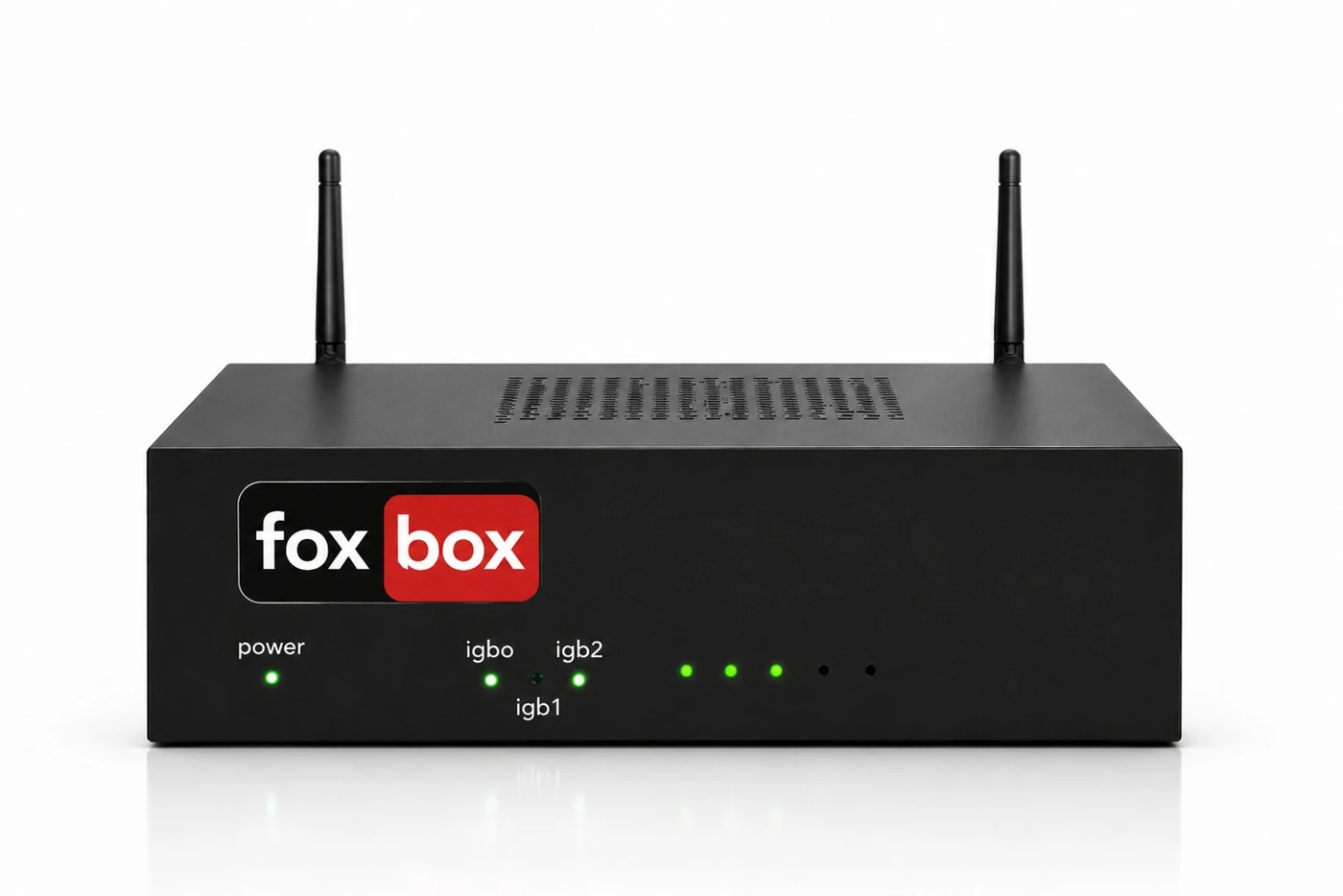 FoxBox S2 · compact, two-modem appliance
Configuration and validation
Technical setup: Zabbix
Connection through an external bridge
Create a Webhook media type and use the downloadable webhook.js with the parameters below. Assign the media to a dedicated Zabbix user and include that user in the problem/recovery action. Store the bridge token as a protected macro. Set a 15-second timeout and one attempt while validating the integration.
The supplied script combines EventId and EventStatus into the event identity, sends JSON to the external bridge and accepts only dry_run, queued or duplicate_suppressed. Keep the recipient in the bridge configuration. A problem and its recovery must use distinct identities; do not substitute the FoxBox user token for the bridge token.
Configuration example · replace placeholders before use
URL = https://bridge.example.invalid/webhooks/zabbix
BridgeToken = {$FOXBOX.BRIDGE.TOKEN}
EventId = {EVENT.ID}
EventStatus = {EVENT.STATUS}
Subject = {ALERT.SUBJECT}
Message = {ALERT.MESSAGE}

# bridge payload identity
event_id = EventId + ":" + EventStatus
Validate before enabling transport
- Replay one synthetic problem, then its recovery; check one acceptance per identity, no message content in logs and a clear failure on HTTP/JSON errors.
References: Zabbix Webhook media
FoxBox API: parameters, errors and status · Adapter authentication and duplicate handling
